
MM2 trade scanner: scan a trade, get the values
Somebody sends an offer and the timer is running. Typing eight item names into a calculator takes longer than the trade stays open. The scanner in our app does the typing for you: point your phone at the Murder Mystery 2 trade window, or pick a screenshot of it, and it reads both offers, adds up the values and tells you whether you win, lose or break even.
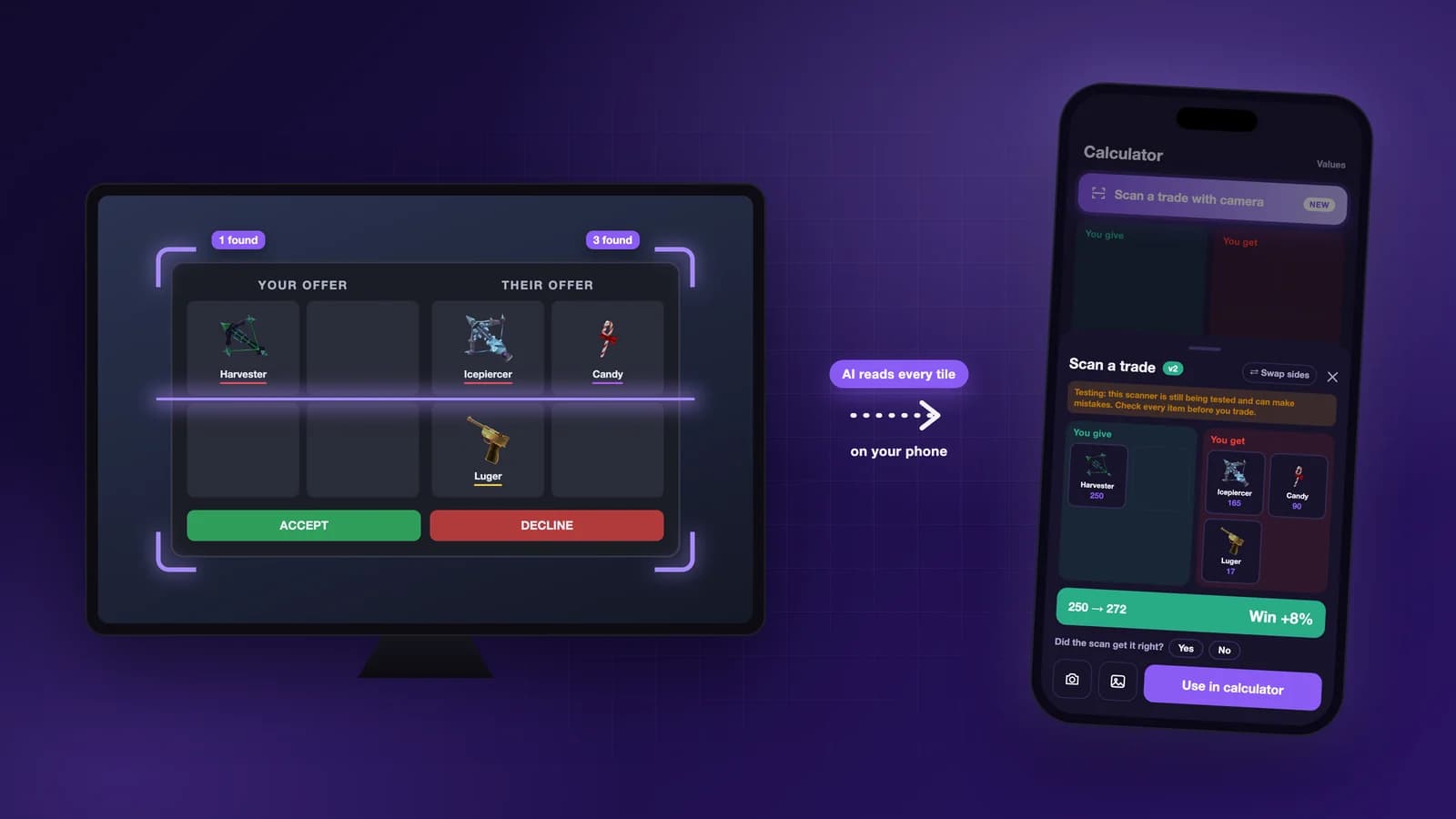
Reads both offers
Every item on your side and theirs, with chromas and stack counts.
Stays on your phone
The picture is read on the device. Nothing is uploaded unless you choose to send it.
Free, no limit
Scan as many trades as you like. It is part of the free app.
How to scan an MM2 trade, step by step
It takes four taps once the scanner is downloaded.
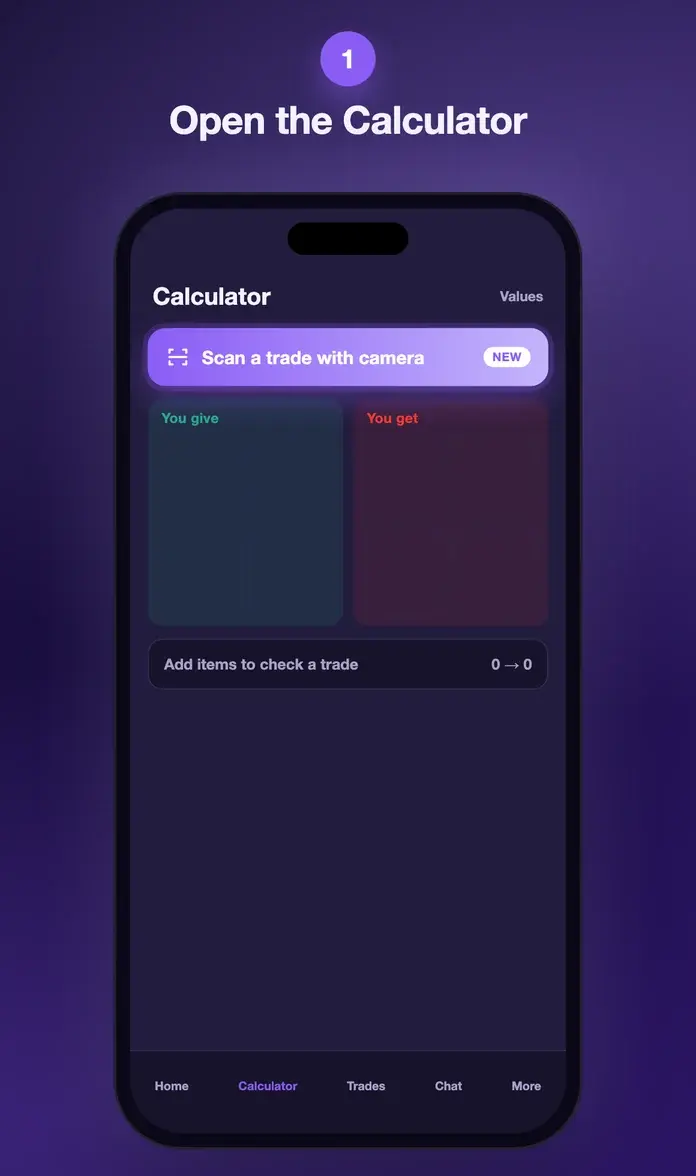
1. Open the Calculator
In the app, go to the Calculator tab and tap Scan a trade with camera. The first time, it downloads the scanner once, about 5 MB.
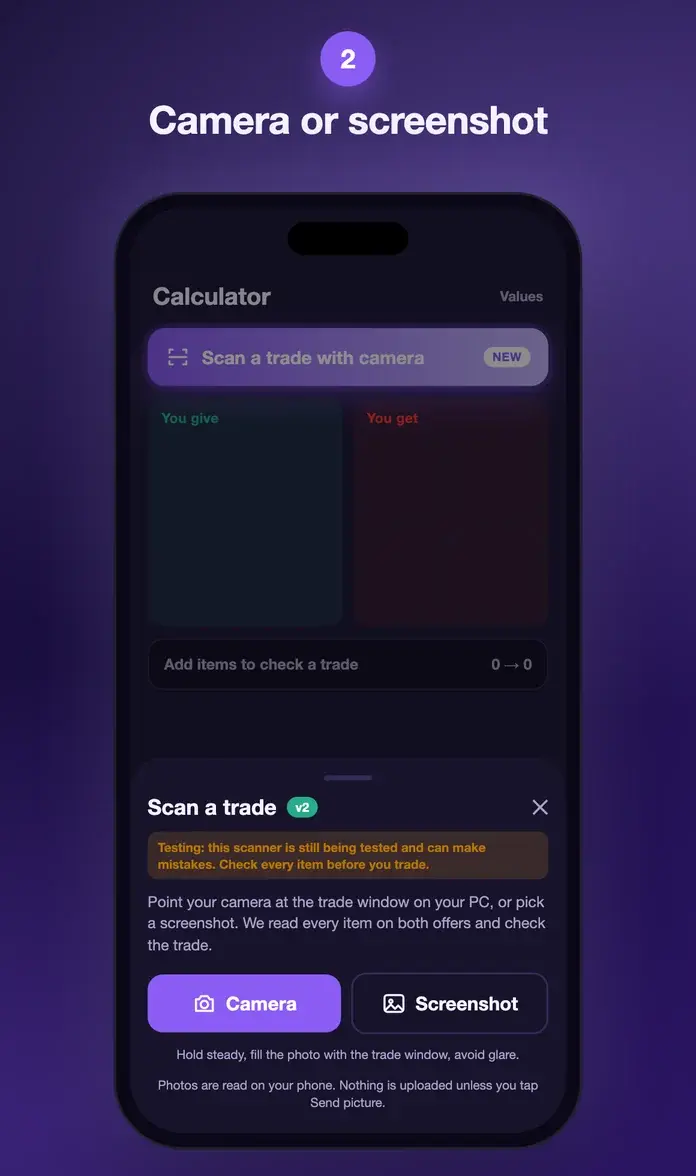
2. Camera or screenshot
Playing on a PC or console? Tap Camera and photograph the screen. Playing on the same phone? Take a screenshot in the game and tap Screenshot.
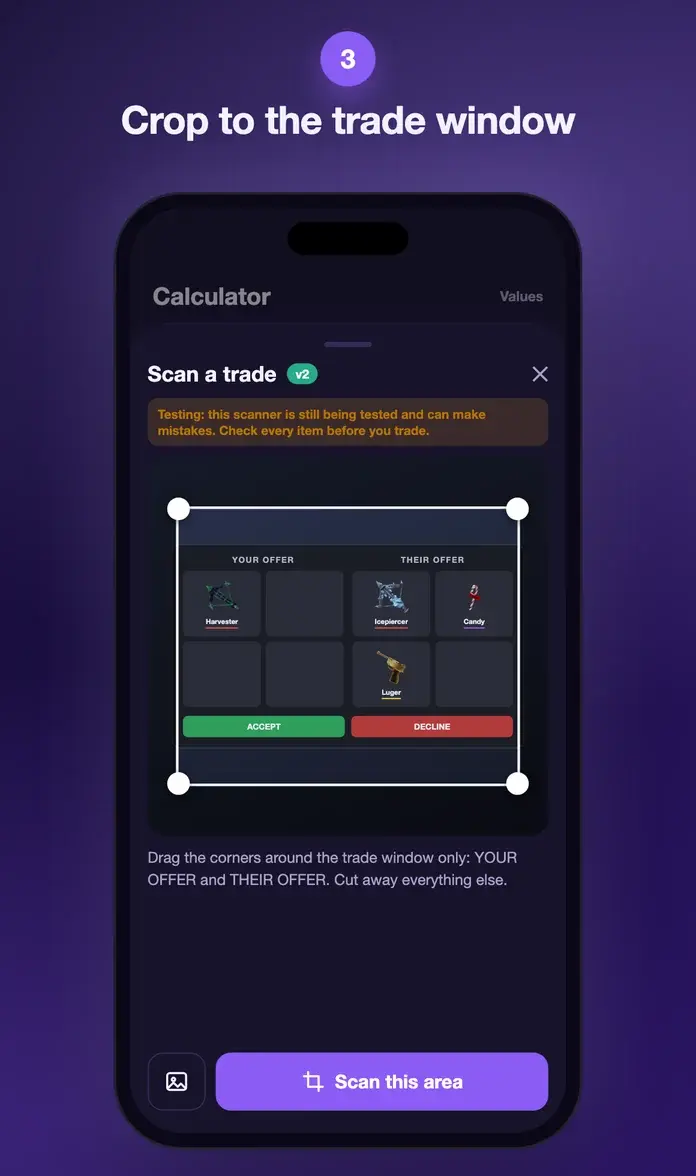
3. Crop to the trade window
Drag the corners so the box holds YOUR OFFER and THEIR OFFER and nothing else, then tap Scan this area.
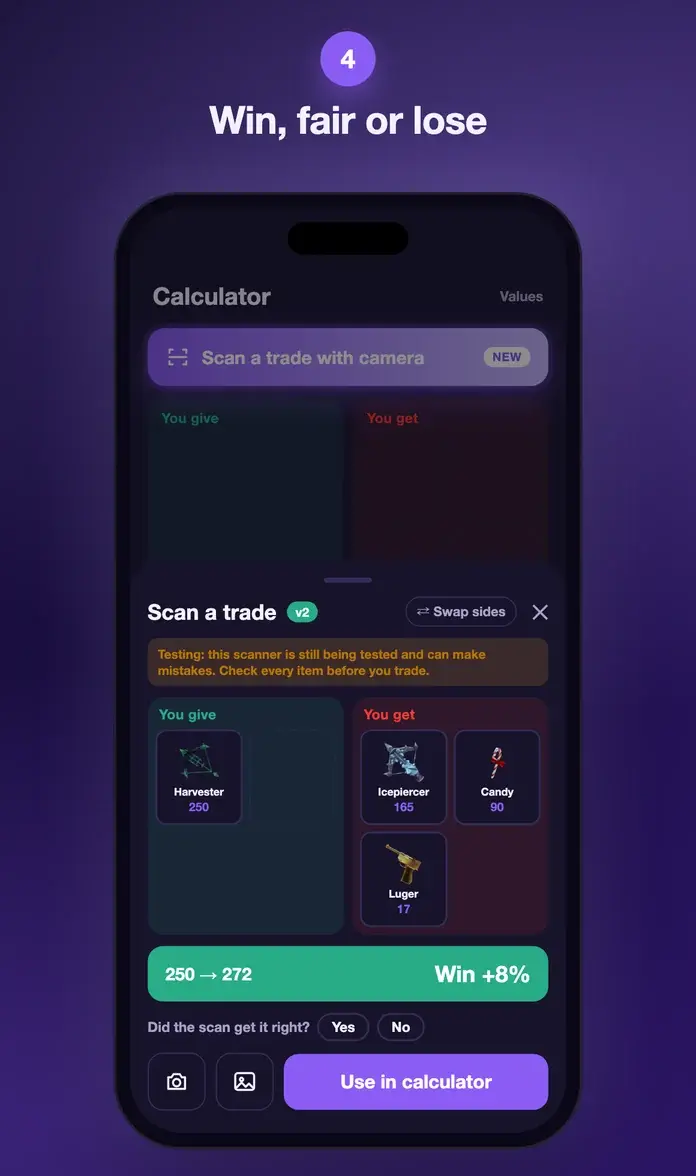
4. Read the result
Both sides appear as You give and You get with a value on every item, both totals, and win, fair or lose. Use in calculator carries it over.
A scan, worked through
Say someone offers Icepiercer, Candy and Luger for your Harvester. You photograph the window, crop it and tap Scan this area. This is what the app shows, priced with the values at this moment:
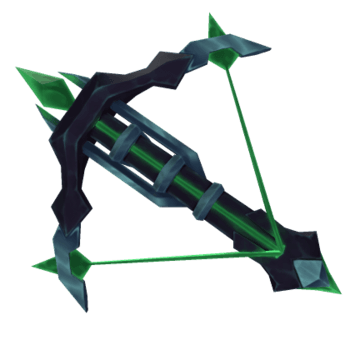
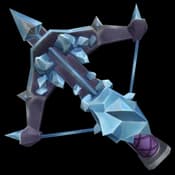

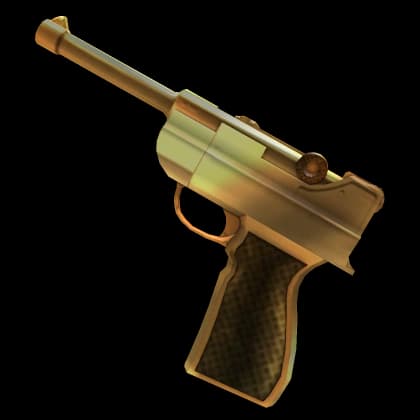
The verdict uses the same rule as our trade checker: when the two totals are within 5% of the bigger side it is fair, and past that it is a win or a loss for you. Value is where a decision starts, not where it ends. Before you accept, look at how wanted each item is; the WFL guide and the demand guide cover that part.
What the scanner reads
- Every item on YOUR OFFER and on THEIR OFFER, sorted onto the right side by those two labels.
- The name printed under each item. When the text is too blurred to read, a small picture model names the item from its art.
- The Chroma tag, so a chroma is not priced as the plain item.
- Stack counts such as x2 or x27, so a pile of the same item is counted in full.
- A screenshot from a phone, tablet or PC, and a phone photo of a monitor or TV.
When it is not sure about an item, it says so. That item gets a small question mark, and the result bar asks you to check it instead of showing a verdict. Tap the item to confirm it, pick another match, or remove it. We would rather show no verdict than a confident wrong one.
How to take a picture it can read
A screenshot is always the best input, because nothing sits between the game and the picture. When you have to photograph a screen, three habits fix nearly every bad scan.
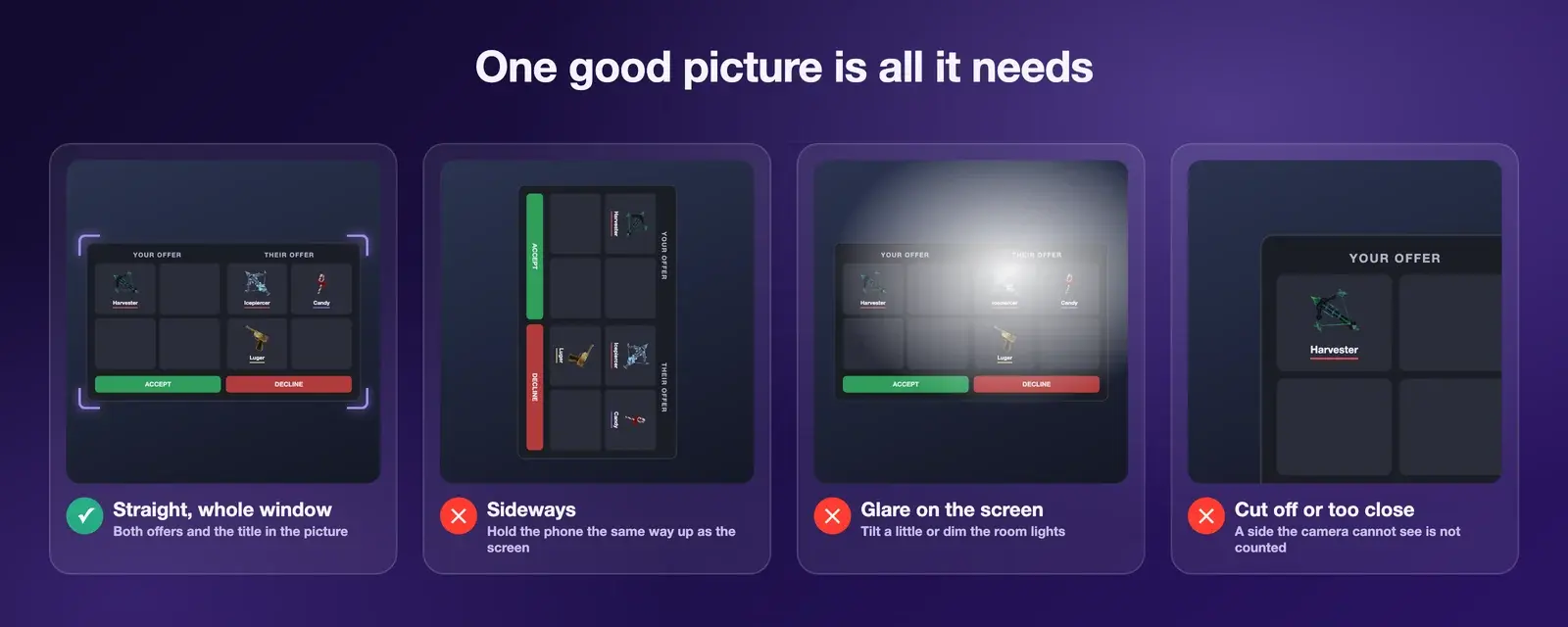
Step closer until the trade window takes up most of the photo. Both offers have to be inside it.
Hold the phone level and the same way up as the screen. A sideways photo is the most common reason a scan fails.
A window or lamp reflected on the monitor hides items. Tilt the phone a little, or turn the screen brightness up.
What it does not read yet
The app shows a yellow note on every scan saying the scanner is still being tested. That is true, and these are the cases we know about.
- A photo taken sideways. Hold the phone the same way up as the screen.
- A trade window that is tiny in the picture, badly blurred, or half covered by glare. Photos of a monitor are harder than screenshots, so check those results more closely.
- Screenshots of another site's calculator or of a value list. It looks for the game's own trade window.
- Your inventory list beside the trade. The scanner skips it on purpose and tells you it did.
- Whether the other player is honest. A scan prices what is in the window when you scan it; it cannot see a swap made afterwards.
When a scan goes wrong, the result screen has a Send picture button. Those pictures are how the scanner gets better: we look at what it missed, fix it, and the fix reaches your phone as a small scanner update, without waiting for a new version of the app.
How it works under the hood
Find the tiles
A finder looks through the picture for the trade window's item slots and draws a box around each one.
Name each item
The text under the item is read on the phone. Where the text is unclear, a small AI picture model, trained on frames from MM2 trading videos, names the item from its art.
Price the trade
The items go to the calculator, which prices both sides and gives the verdict with the same rule you get when you add items by hand.
All three steps run on your phone. There is no server reading your pictures, which is also why the scanner is free: a scan costs us nothing. The details of what is kept when you do choose to send a picture are in the privacy policy, under Trade Scanner pictures.
Try it on your next trade
Get the app, open the Calculator and tap Scan a trade with camera. On a computer right now? The trade checker on this site gives the same verdict when you add the items yourself.
Open the trade checkerMM2 trade scanner: questions people ask
Is the MM2 trade scanner free?
Yes. It is part of the free app on iOS and Android. There is no scan limit and nothing about it is behind a paywall.
Where is the scanner in the app?
On the Calculator tab, at the top: the button says Scan a trade with camera. If you do not see it, update the app from the App Store or Google Play and open the Calculator again.
Does my screenshot get uploaded?
No. The picture is read on your phone. Nothing leaves the phone unless you tap Send picture after a scan, which sends that one picture to us so we can fix a wrong read. Sending is always your choice.
How accurate is it?
On a clean screenshot it usually gets every item. Photos of a monitor, small windows and blurred pictures can lose or misread an item, which is why the app marks anything it is unsure about with a question mark and holds the verdict back until you have confirmed it. The app labels the scanner as still being tested, and so do we.
What if the scanner reads an item wrong?
Tap the item. The app offers the closest other matches to pick from, or you can remove it. The totals and the verdict change as soon as you fix it.
Can I scan a trade on the website?
Not yet. The scanner runs on a phone, inside the app. On the website you can enter both sides by hand in the trade checker and get the same verdict.
Which value list does the scan use?
The same values the app's calculator uses, which come from the community lists we show on every item page. The scanner does not have values of its own: it finds the items, and the calculator prices them.
Does it work without internet?
The app needs a connection once to download the scanner, and now and then to check for a newer version of it. Reading the picture happens on the phone.
More on judging a trade once you have the totals: how to check an MM2 trade from a screenshot, MM2 trading safety and the full value list.